Troubleshooting
Install without admin access
If you can't install apps in your Slack workspace, follow these steps. Share this page with your admin if needed.
Step 1: Open Slack App Directory
#01

Search for “Clarity AI” and open the app page.
Step 2: Encountered “Not authorized” or admin required?
#02
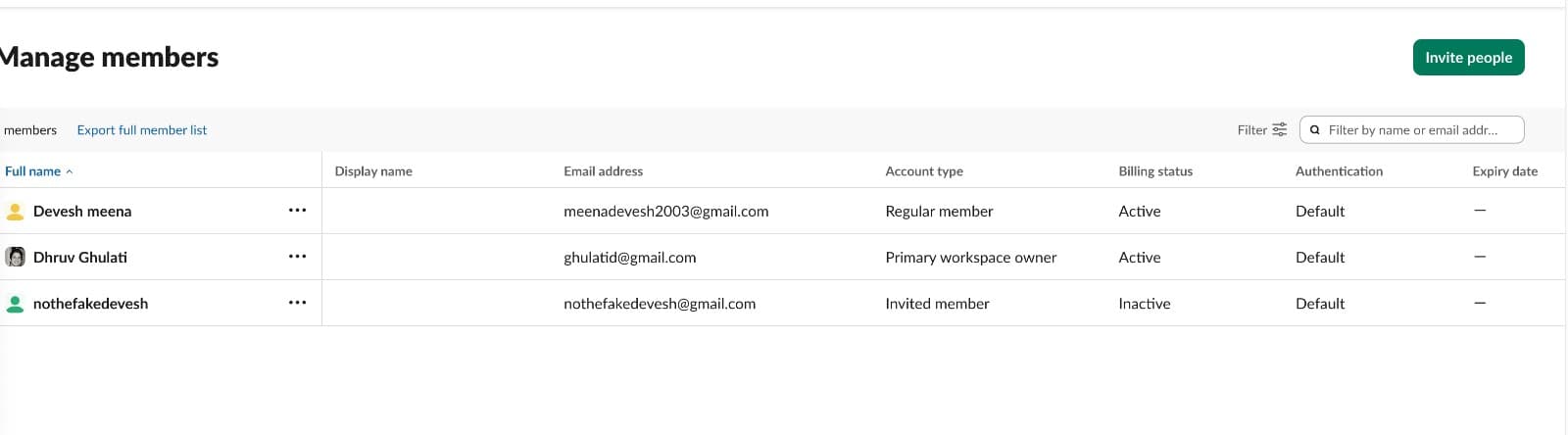
This means your workspace limits who can install apps.
Step 3: Request approval from an admin
#03
Use the in‑Slack request button or share the app link with your admin.
Step 4: Explain why you need the app
#04
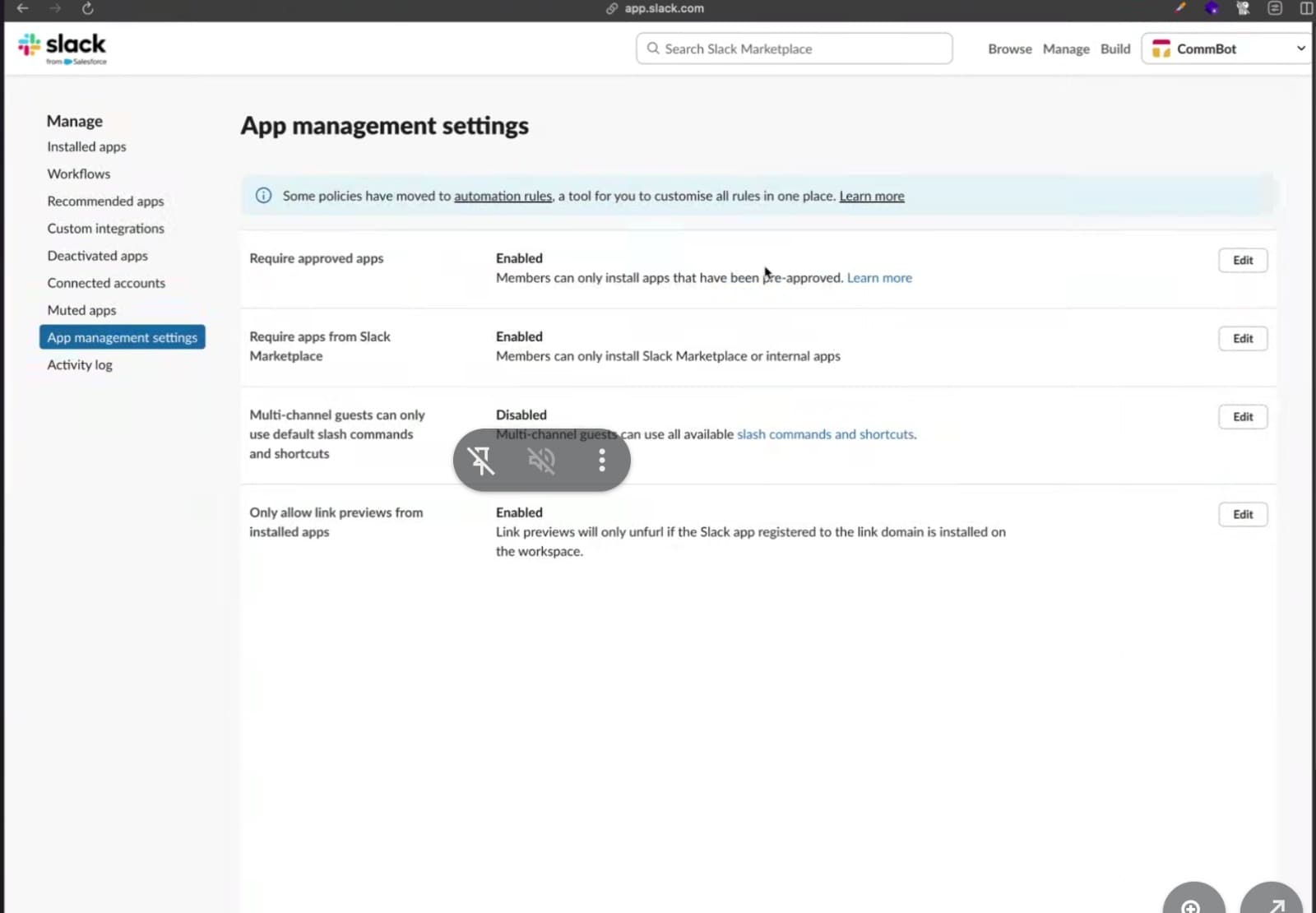
Mention private coaching, no message storage, and productivity benefits.
Step 5: Check workspace settings
#05
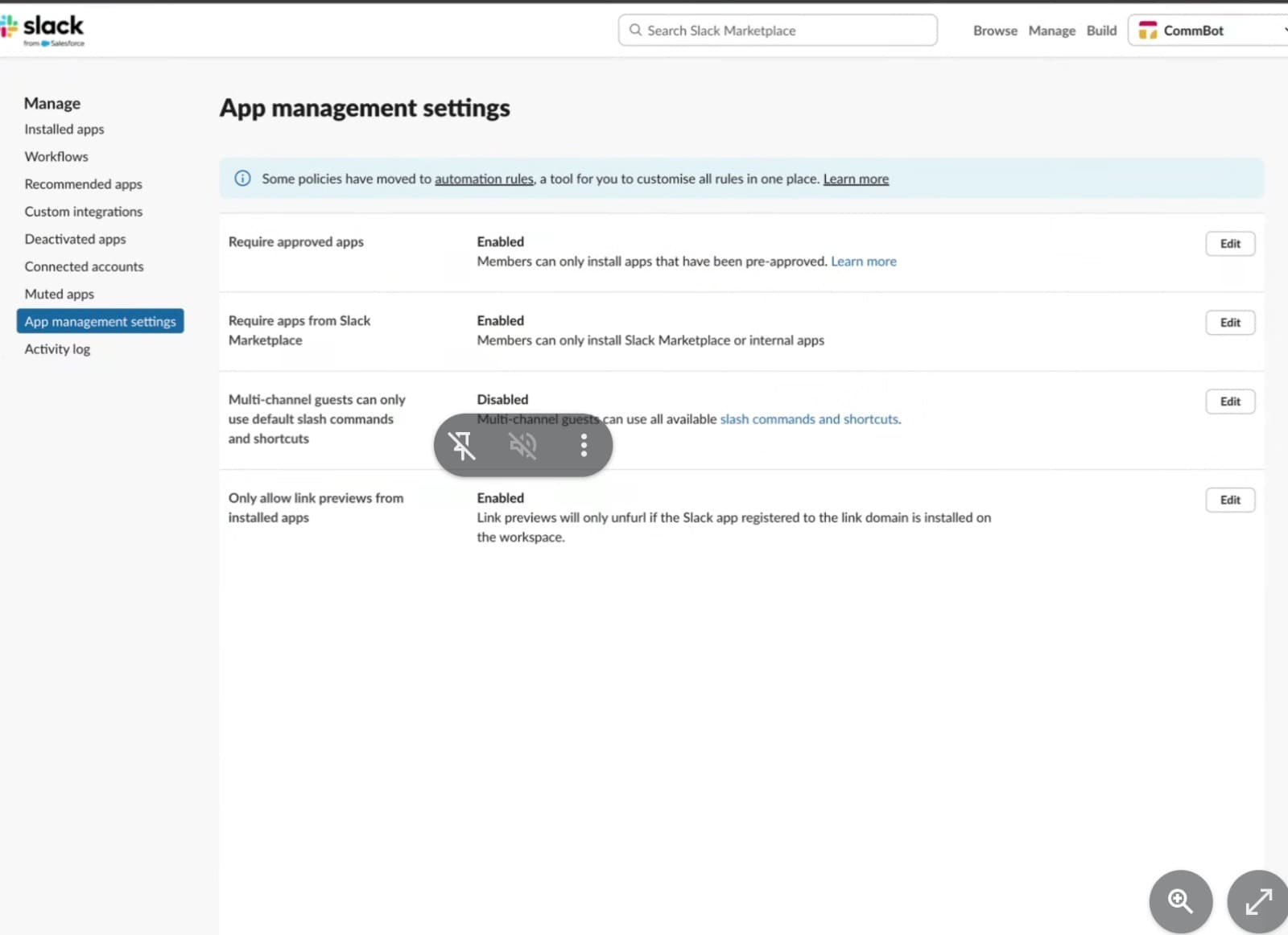
Admins can allow installing apps or enable specific approved apps.
Step 6: Allow apps from outside your org (admin)
#06
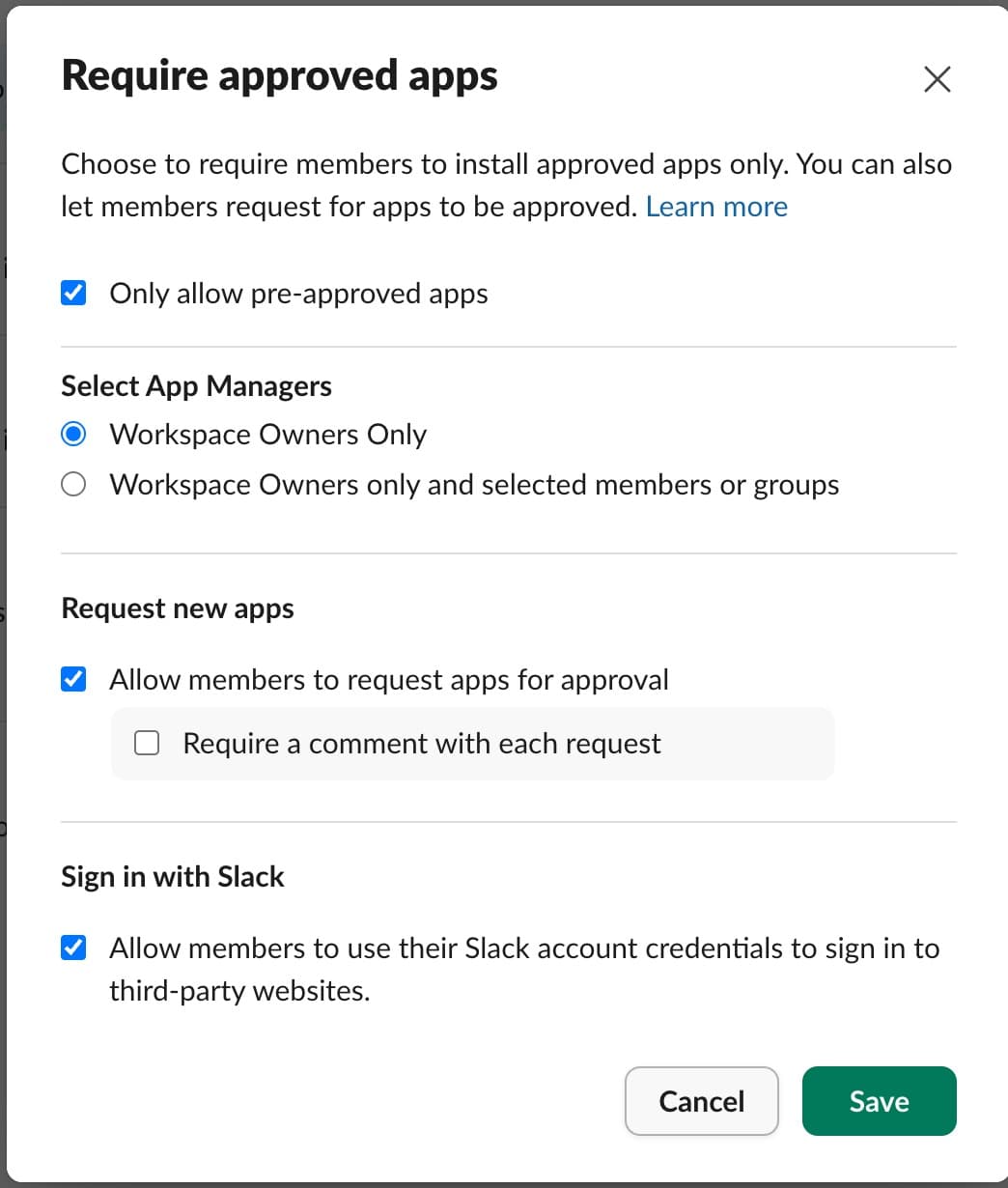
If restricted, admins can permit vetted external apps.
Step 7: Approve the app in Admin Console (admin)
#07
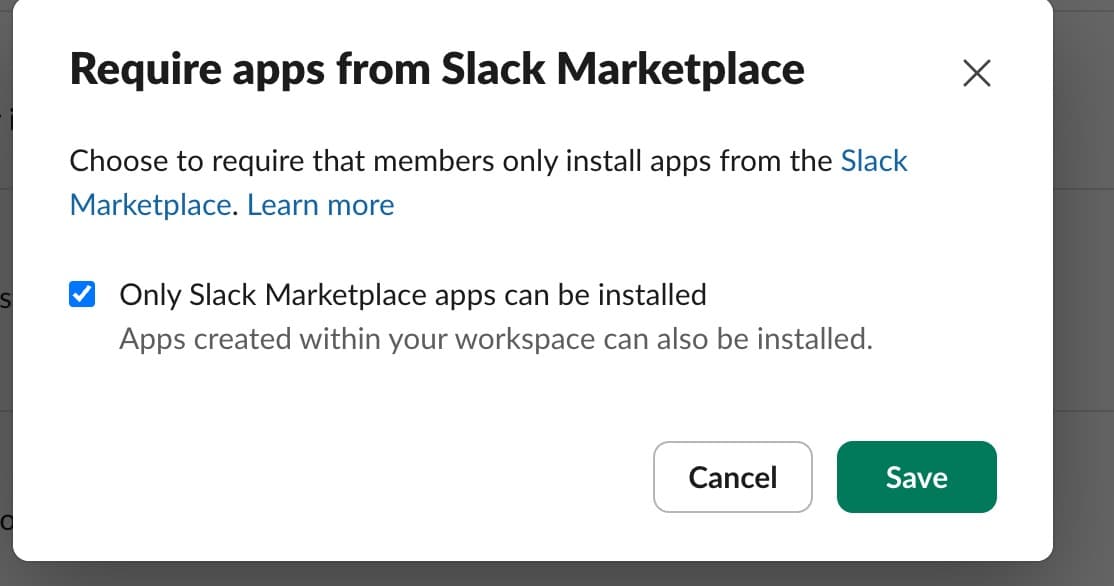
Add the app to the allowed list for your workspace.
Step 8: Re‑try “Add to Slack”
#08

Once approved, the install button will proceed normally.
Step 9: Authorize permissions
#09
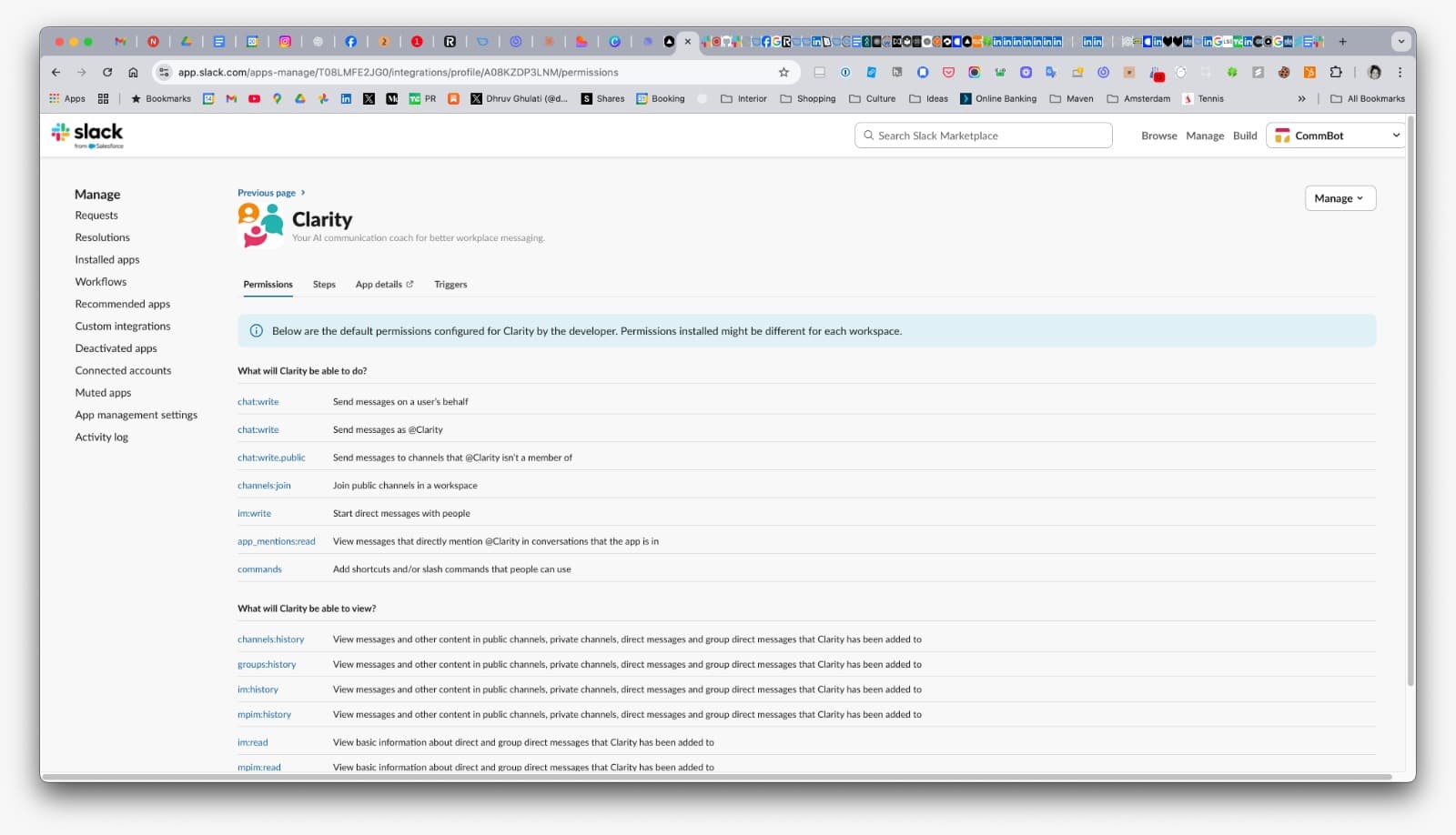
Review scopes and click “Allow” to finish installation.
Step 10: You are all set
#10
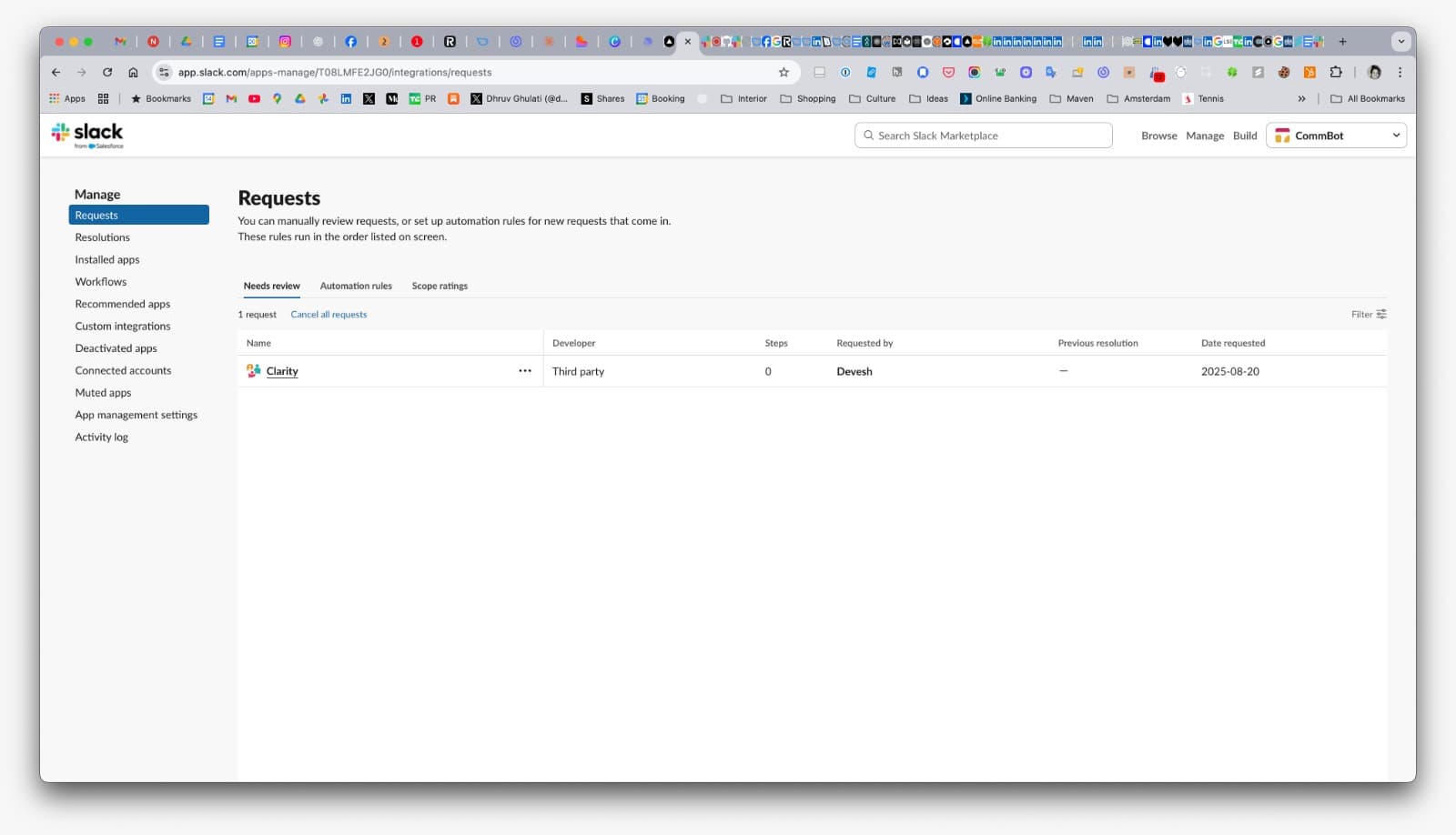
Run /personalfeedback or /rephrase in Slack to get started.
Next steps
- Still blocked? Ask an admin to approve the app and allow installing external apps.
- No admin access at all? Try installing in a dev/sandbox workspace to evaluate first.
- Once installed, open Slack and run
/personalfeedbackto begin.
Return to the Quick start when installation is complete.